I finally downloaded the latest Windows 8 Preview Release the other day and have had a few days to tinker with it, although not in too much depth yet.
Setup was painless and resembled the old Windows Vista/7 install screen. On first load it gave me the option to create or use an existing Microsoft account or to 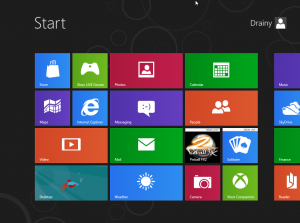 use local sign-on only, I’m afraid I wasn’t feeling particularly adventurous and opted for the local sign-on.
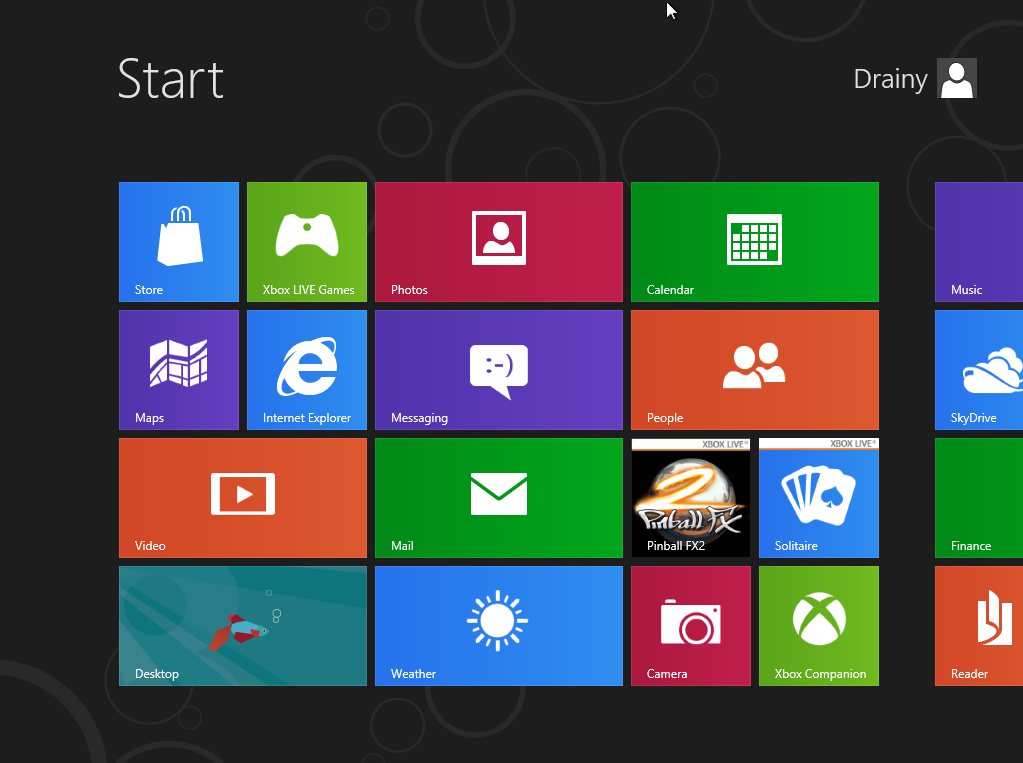
Once logged in you’re presented with the swish new Metro UI that has caused a fair bit of debate. There are people that argue it doesn’t suit “traditional” desktop devices as it appears designed for a touch screen interface but I would dispute that. Whilst it is obvious that they have designed it with touch screen devices in mind, this doesn’t immediately prohibit it from working on “traditional” devices. If anything I found it easier to navigate, quicker to find frequently used programs and I love the idea of these live tiles giving me real-time information on things such as news, weather or sports scores. Then take into account its touch-screen design and just think how many devices this could realistically operate over, its a smart move to create an interface that can operate across such a wide range of devices and combined with the back catalog of Windows software, it should have a strong start. I guess the real test will be if the hardware produced will match the quality of the UI.
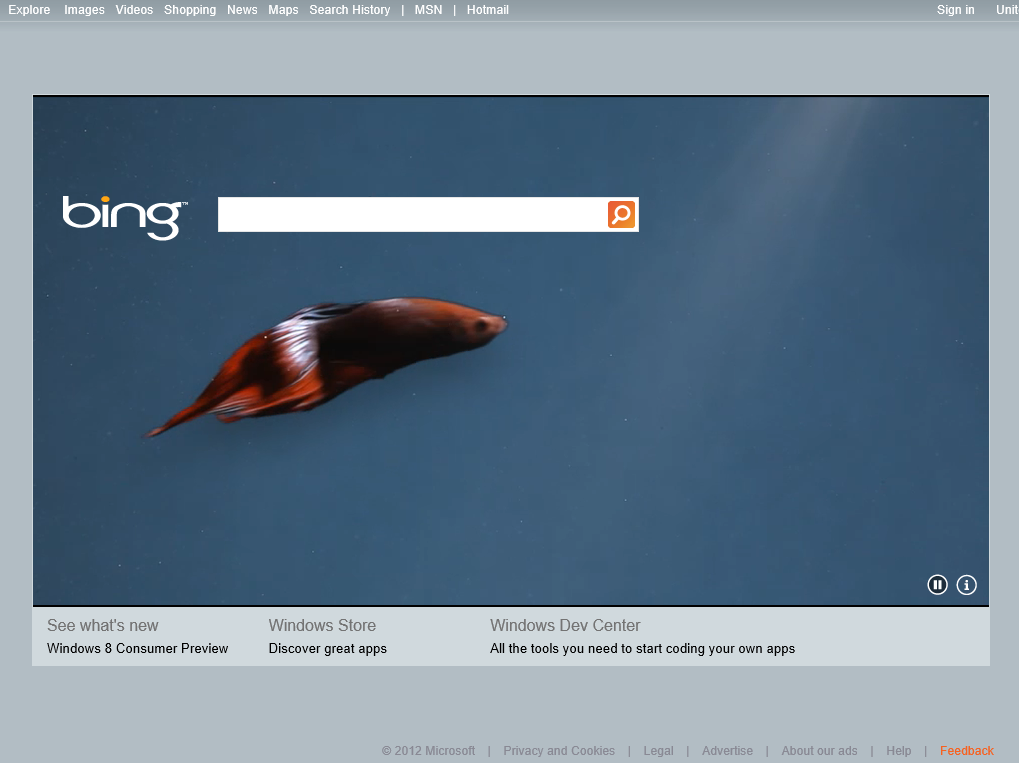
Anyway, before I waffle on anymore about Metro lets look at some of the different 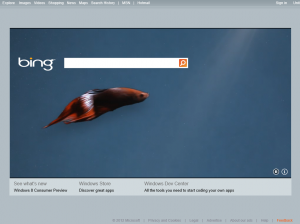 tiles that are displayed on the home screen. Internet Explorer comes with Windows 8 in two variations, a standard desktop version and a Metro version. The Metro version is essentially the same product but it has had its UI redesigned to fit in with the style of vanishing menu’s and near fullscreen operation of other Metro applications. In the screenshot to the right you can see the default bing homepage and the fish they love to drop in randomly, which is actually animated and swims around the background of the bing page by the way (pretty cool, even if it doesn’t serve a purpose). I haven’t found much else to talk about really, its standard IE but minus the persistent toolbars, which is actually very effective both visually and as a screen-space saver.
There is a bing maps application provided that is reminiscent of the Google maps  application you might find on your Android device. Again it has a nice clean interface and all the usual options you would expect are present, but when trying “London” in the search bar it found no results… so probably a bit of work still to go on this but it looks promising (And yes, I did try relocating the map to look at the UK and then trying again, it still fell over with London on screen), assuming its fixed so it can find places it might be a great tool to have on a Windows 8 tablet in future.
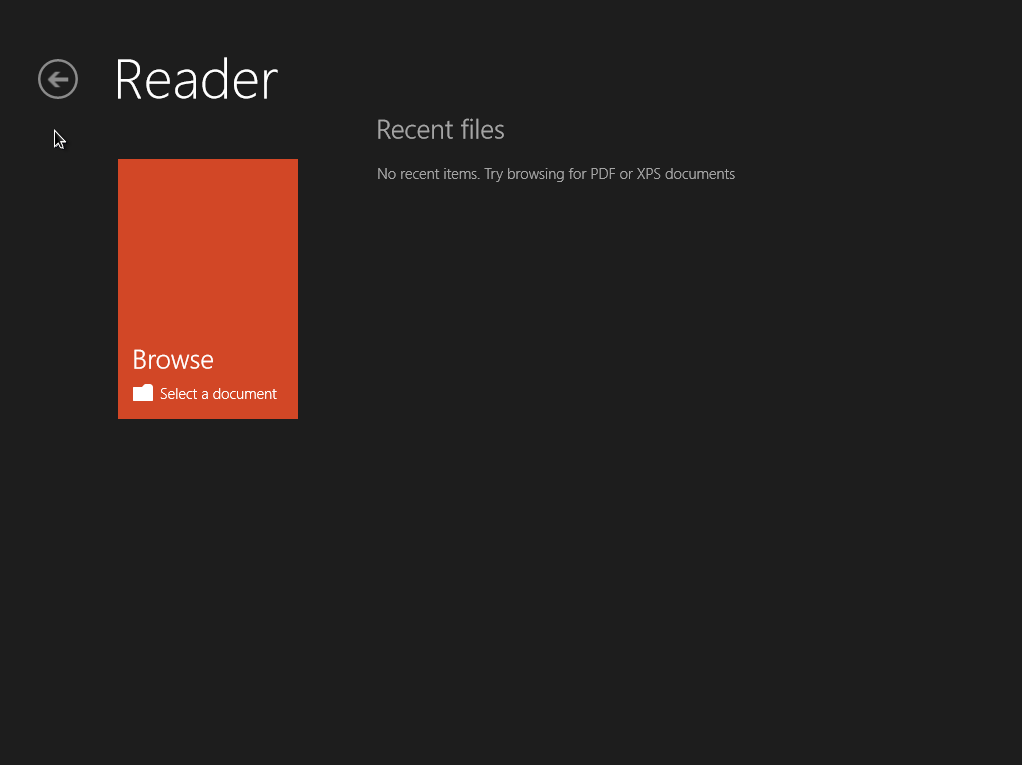
Two of the other applications I tried from the Metro UI were Reader and Photos.  Reader appears to just be an embedded PDF and XPS viewer, I didn’t give it a test as I think its probably fairly clear what it will achieve and even if it isn’t great there certainly isn’t a lack of PDF readers out on the market. The Photos application was interesting as it shows Microsoft want Windows 8 to be able to integrate with your photos on shared drives (SkyDrive, Dropbox etc), social media, flickr etc. Why is that interesting? Well I think in this day and age a lot of people find they very rarely view photos from their hard disc, most of us view our friends photos over social media or sites like flickr and in turn upload a lot of our own photos to the same sites. I’m not saying that the art of looking at a photo on a desktop is dead, but I think this integration reflects where we store
  and view photos these days and looks to be a nice way to bring them all together. I will get this setup with a few accounts and report back on its performance in a later post.
So that was a very brief look at a few Metro apps, but now lets switch over to the old fashioned desktop view!
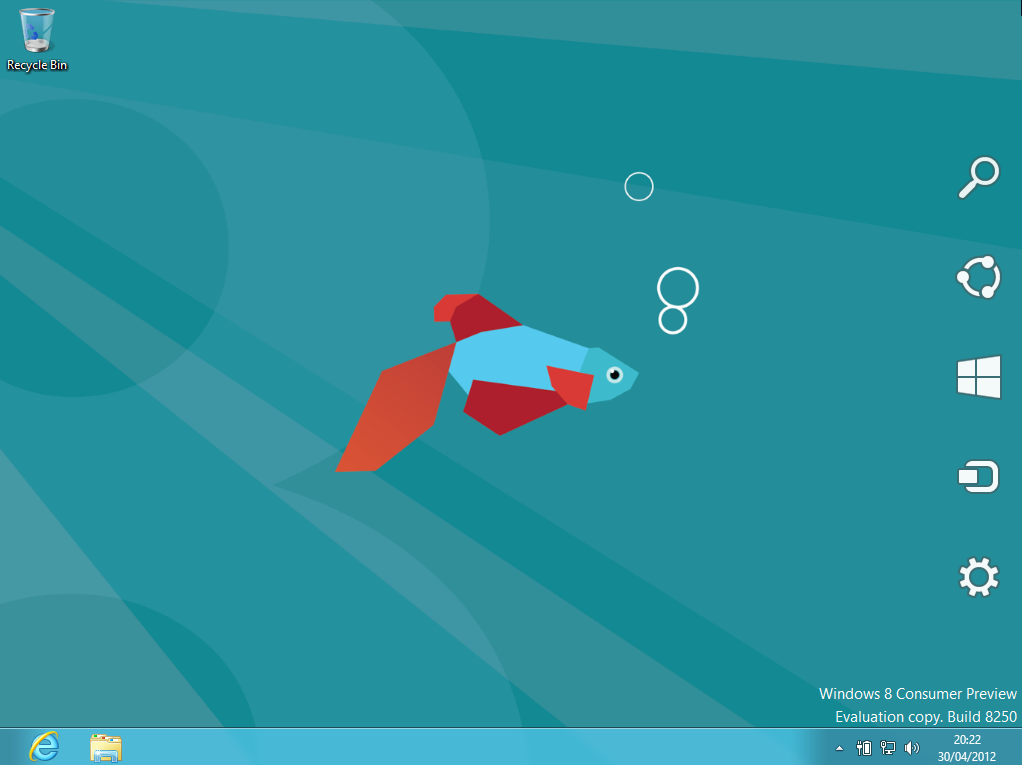
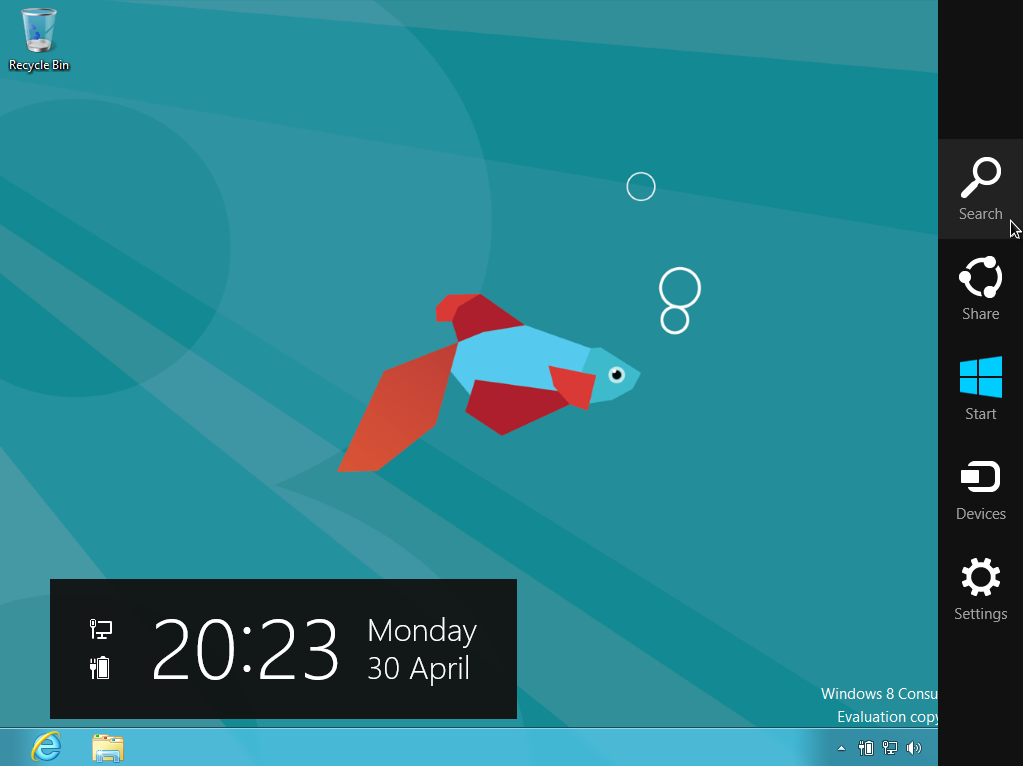
Everything looks to be where you would expect it but there are some omissions, firstly there is no “Start” menu. You can still pin programs to the taskbar and load them from here but the “Start” menu is no more, instead if you mouse-over the bottom left of the screen it will display a small context box that allows you to switch to the last application you accessed or if there are none it will show you the Metro desktop. If you have multiple programs running then a bar will 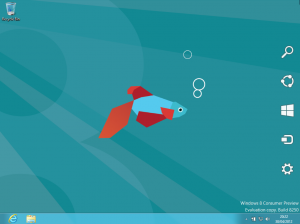 expand across the left of the screen with small previews of each application and you can then select them to switch application. If you move to the right of the screen you are presented with a series of white icons as shown in the screenshot to the right, if you then mouse-over these then a solid navigation bar appears around them along with a clock and battery indicator in the bottom left as shown in the image below. This same side bar can be accessed through the Metro apps in the same way by moving the mouse to the right of the screen at any time.
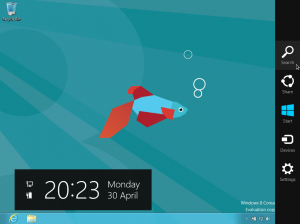 One of the options on the sidebar is settings, from here you can edit some of the more basic settings for your computer and it appears to have been designed to be as simple as possible for users of all experience.
I think thats enough for Part 1 of this preview of Windows 8, in Part 2 I will dive deeper into the settings menu and talk about the different options available, along with a look at the new explorer window, control panel and the question on everyones lips, is Notepad still in the new version?!?!
Read More